
Sentaurus Workbench
3. Creating Projects
3.1 Setting Up the Tool Flow
3.2 Saving Projects
3.3 Setting Up Parallel Processing
Objectives
- To set up and save a new Sentaurus Workbench project.
3.1 Setting Up the Tool Flow
The first step to setting up a tool flow is to create a project.
To create a project, do one of the following:
- Choose Project > New and then select either Traditional Project or Hierarchical Project (see Section 1.4 Project Structure: Traditional and Hierarchical Organizations for details).
- Click the
 toolbar button.
This creates a temporary project with a name similar to g_lnx_2879_0.tmp in the tmp folder that can be viewed in the projects browser (see Figure 1).

Figure 1. Project directory showing project folder.
To set up a tool flow, under the Family Tree, right-click the No Tools node (see Figure 2) and choose Add.
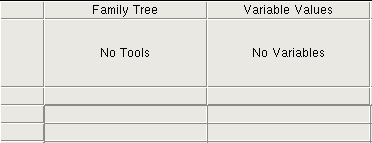
Figure 2. Detail of Project tab showing Family Tree.
The Add Tool (or Tool Properties) dialog box opens (see Figure 3).
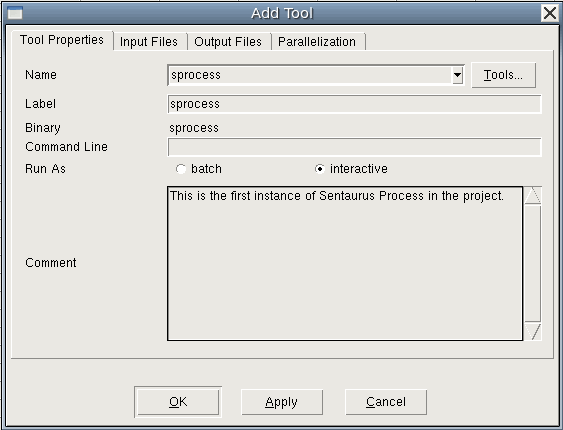
Figure 3. Add Tool dialog box when adding first tool to the flow.
The Label is the name by which this instance of Sentaurus Process is referred. You can use any unique name you want. If you use multiple instances of Sentaurus Process in a project, then each instance must have a unique label, for example, sprocess1 and sprocess2. The Input Files and Output Files tabs list all files associated with the tool for reference.
If you want to return to the Tool Properties dialog box for a tool you have already created, then double-click the tool icon.
Now, the command file for this tool must be created. Right-click the Sentaurus Process tool icon and choose Edit Input > Commands. The text editor (gedit by default) opens for you to enter commands.
To customize the text editor used for editing input files, see Section 5.2 Changing the Default Text Editor.
Next, add the following lines to the Sentaurus Process command file with the text editor:
Grid2D
select silicon name=Boron z=1e15 store
implant phosphorus dose=5e14 energy=40
diffuse time=20 temperature=900
struct tdr=n@node@ !Gas !interfaces
Save the sprocess_fps.cmd command file and close the text editor.
In the next sections, you might want to add some extra tools to the flow (usually, Sentaurus Structure Editor, or Sentaurus Device, or both, followed by Sentaurus Visual).
3.2 Saving Projects
Before running the project, you must save it.
To save a project:
- Choose Project > Save As > Project.
- Navigate to where you want to save the project under $STDB.
- Save the project as parameters_scenarios.
You can now run the project as described in Section 2.3 Running Projects. There is only one node to run for this project.
3.3 Setting Up Parallel Processing
Sentaurus Workbench supports parallel processing in a shared-memory multiprocessor environment, as well as message passing interface (MPI). This is especially important for 3D simulations, which require significant computation resources. To run simulations in parallel, special commands are available to instruct tools to use thread parallelism to accelerate the simulations (see Section 9.5 Parallelization).
Sentaurus Workbench automatically synchronizes the number of requested parallel slots between a simulation job and a scheduler. You need to decide on the required resources, such as the number of requested parallel slots (CPUs) and the amount of memory (RAM), before job execution. Sentaurus Workbench takes over this task and requests appropriate computational resources during job submission (this is done by default).
To configure parallel job execution, each tool has a corresponding Tool Properties dialog box where you can set up parallelization on the Parallelization tab of the dialog box (see Figure 4).
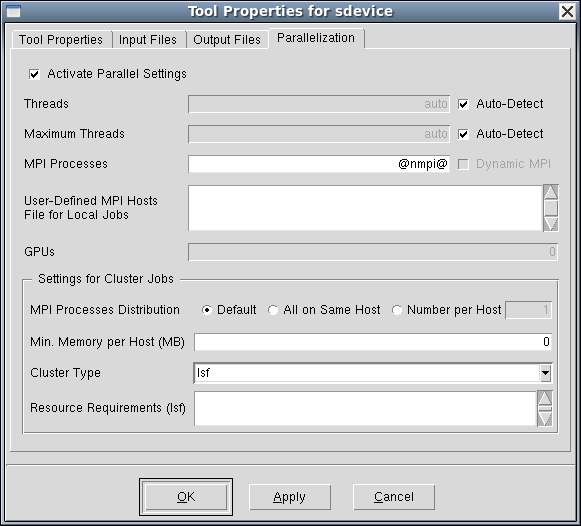
Figure 4. Tool Properties dialog box showing Parallelization tab used to set up automatic CPU allocation for parallel computation. (Click image for full-size view.)
Copyright © 2024 Synopsys, Inc. All rights reserved.